TABLE OF CONTENTS
- 1. What are Item Price Lists?
- 2. Unit Cost and Price List cost
- 3. PrintVis Import Setup List (aka “Item Pricelist Import / Export”)
- 4. Step-by-step price list setup
- 7. PrintVis support portal info (opening these links requires a separate login and password)
1. What are Item Price Lists?
Item Price Lists are pricing look-up tables that are associated with an item.
We use price list prices in estimates only, but we are purchasing based on real item pricing.
This document shows you a few price list examples and how to import multiple price lists at the same time.
2. Unit Cost and Price List cost
Each item in PrintVis can have multiple costs and prices:
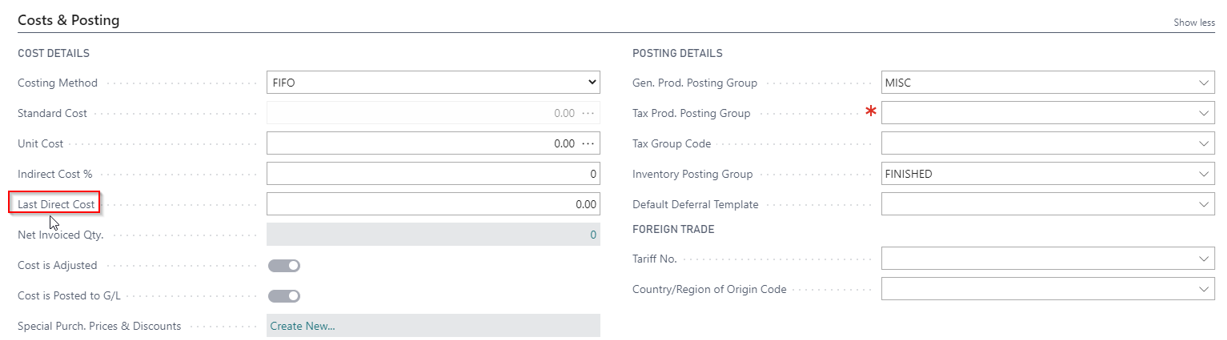
Last Direct Cost, located under “Costs & Posting” fast tab on the Item Card. When we create a Purchase Order, this is the field that the cost comes from.
An actual “Unit Cost", also located under “Costs & Posting” fast tab on the Item Card.
It gets calculated based on the assigned Costing Method, per Base Unit of Measure.
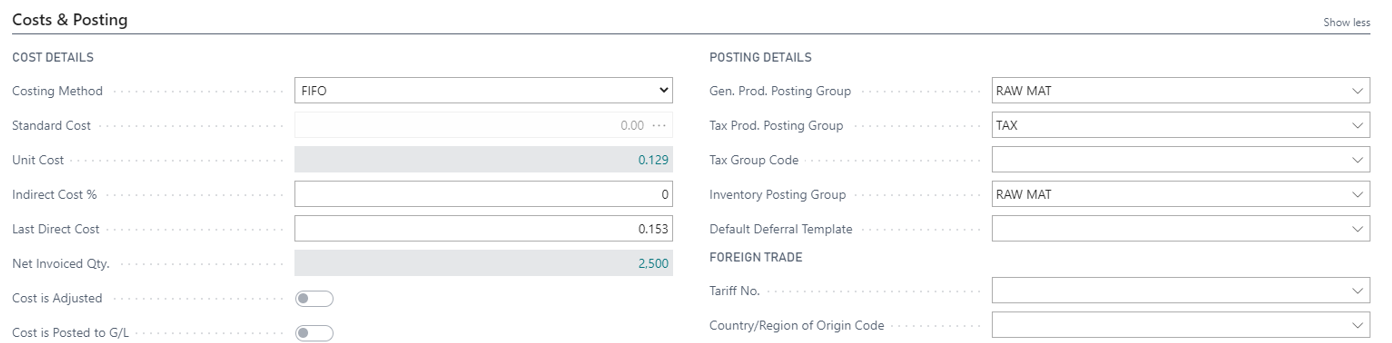
For example, if we buy paper in sheets, we specify the Base unit Of Measure as “Pieces” - and PrintVis calculates the Unit Cost "per sheet":
Price list price - gets attached to an item as a separate “Price List Code”, under “PrintVis Pricing” fats tab on the item card:
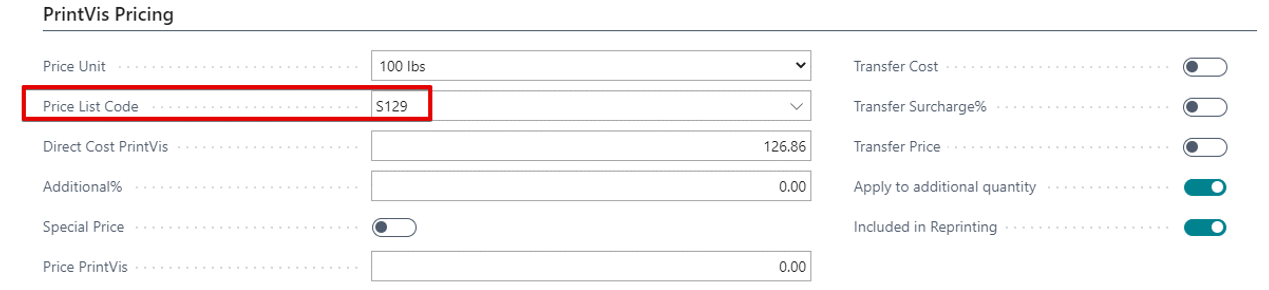
Most substrates usually get setup with both Unit Cost and Price List cost.
When we do estimates, a Price List pricing is used.
When we purchase the paper, a real item cost is used.
This way, we maintain stability on estimates and manage real costs on the same Item.
Price List S129, in this example has $126.4311 / CWT, starting with sheet quantity of 1:
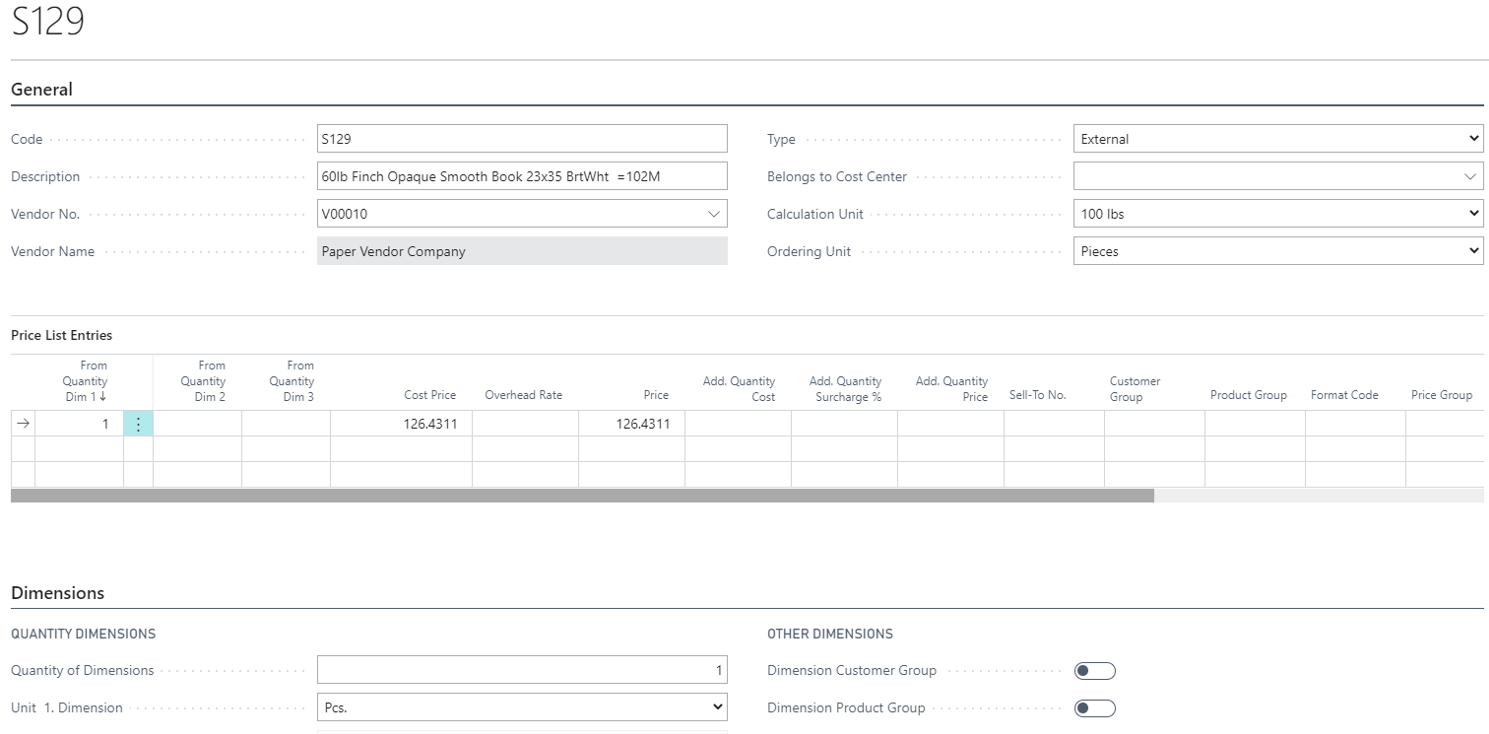
In some cases, we may have a different price break for a higher quantity, then our price list may look like this: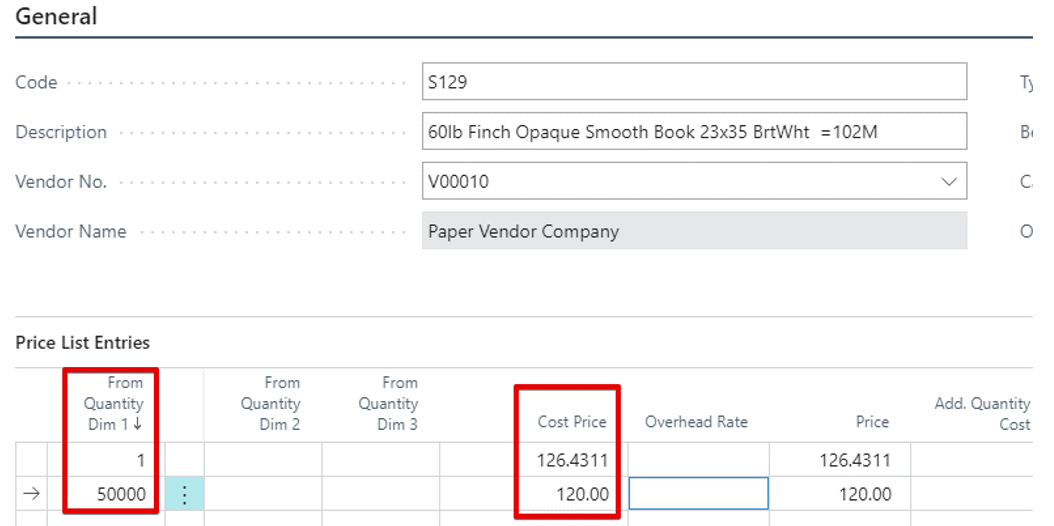
In the example above, starting with quantity of 50,000 the price will be $120 / CWT
It is important in this case to separate the two pricing methods.
This is done by making sure the “Transfer Cost” checkbox is unchecked:
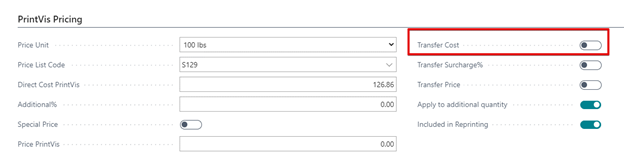
If “Transfer Cost” check box is enabled, PrintVis ignores the Price List and uses the “real cost” in estimates.
3. PrintVis Import Setup List (aka “Item Pricelist Import / Export”)
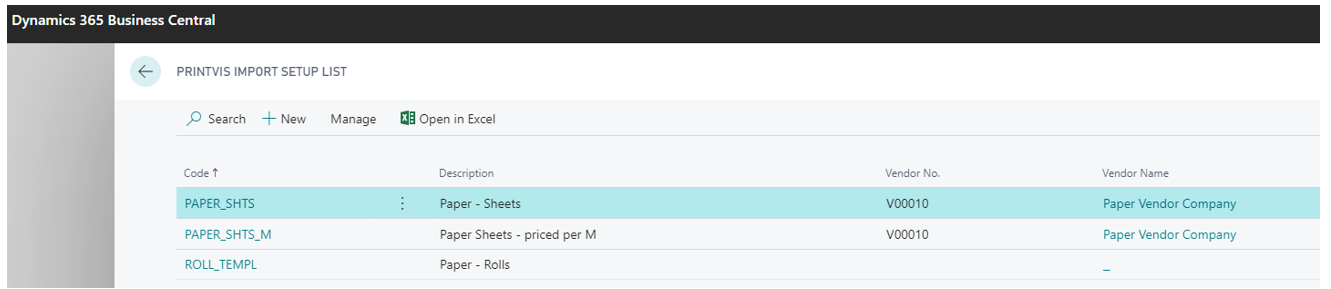
This is the tool that lets us maintain paper items and their corresponding price lists – both at the same time.
This tool works similarly to “Configuration Templates”, but in addition to importing the data, it creates Price Lists and attaches them to items.
First, we create a Price List EXCEL – based on the data supplied by Vendor.
Usually, vendor-supplied data may need to be cleaned-up and formatted so that it can be understood by PrintVis. We can also start our EXCEL by exporting the existing data, please see more about this below.
When setting up items for the first time, use Vendor’s data to help you organize your items.
For example, we can create Item Qualities based on Vendor’s “Product Finish” category:
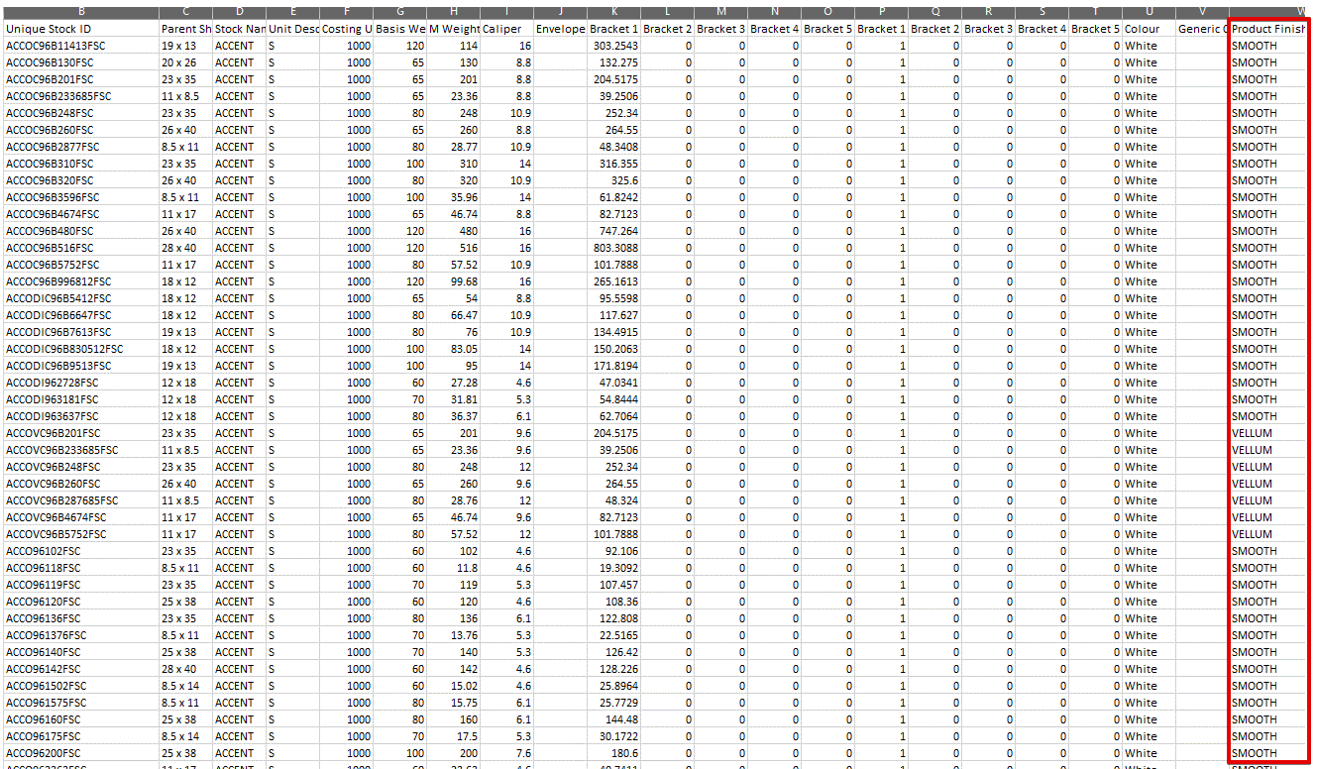
The goal is to decide what data we want to bring in and then match the Price List EXCEL fields with the Item Card data fields in PrintVis.
------------------------------------
4. Step-by-step price list setup
Example: we wish to create a price list for all “Poly Cleat LAM” substrate items and add 2 new similar items, all will have a corresponding price list attached.
• We will create a new template.
• Decide which data fields we would like to use.
• Create an item template.
• Do the initial data export from PrintVis.
• Edit the template and save it.
• Import the data back from the template into PrintVis.
1. Confirm that all substrate-related Item fields have been finalized and created.
2. In PrintVis, go into “PrintVis Import Setup List” page, hit “new” and create a blank new template
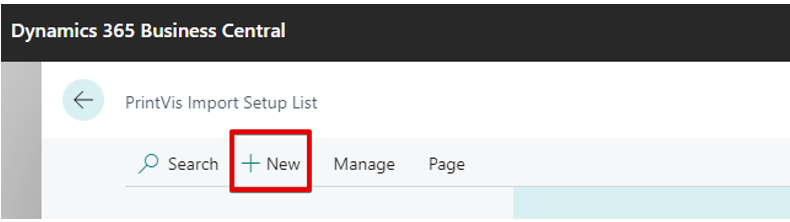
Note that we will usually need a different template for every Vendor and for every variation of unit of measure and pricing method.
For example, we will need separate templates for items purchased in feet and items purchased in lbs. And, if we want to specify a Vendor on the Item Card, we will need a separate template for each Vendor.
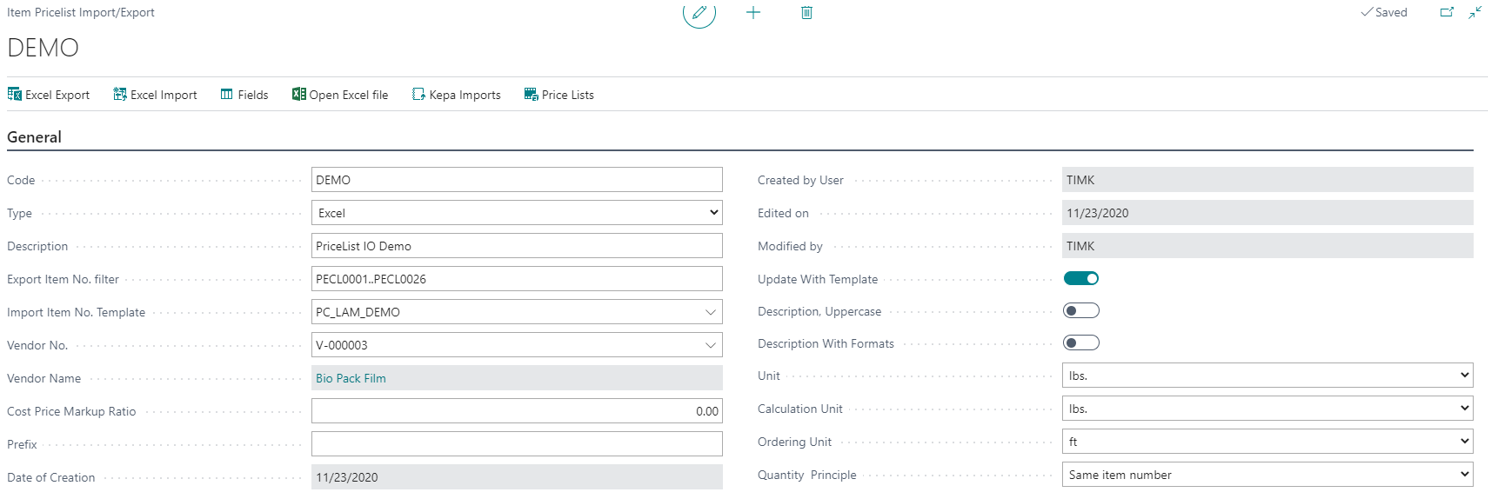
3. Setup the template
Start at the top left: enter the alpha-numeric Code (20 characters max.), no blank spaces.
Type = keep as EXCEL (Kepa is another European standard, not used in North America).
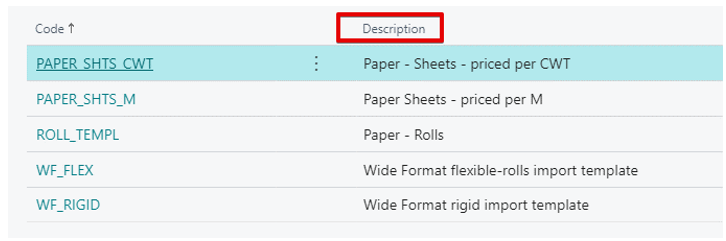
Description = add a bit more detail as to what items can be found in this list. Totally up to you, here are some examples:
Export Item No. filter = can be used when exporting the data from PrintVis.
For example, if we wish to export and modify only the items within PECL0001 – PECL0026 Item No. range, we enter it as such:

Import Item No. Template = create a template item that has only a few common attributes. The rest of the data will be overwritten during the price list import.
Vendor No. = select the Vendor from your Vendor list.
Cost Price Markup Ratio = we can choose to apply an “overhead mark-up” right at this stage.
This will result in the following mark-up appearing on the Price List: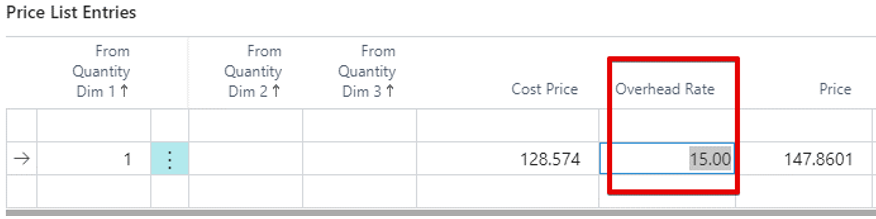
Prefix = a common pre-fix can be added to all imported Item numbers.
Update With Template = should be enabled if you want to update the existing items with new data.
Description, Uppercase = capitalizes item descriptions. For example, Finch Opaque Smooth Cover will become FINCH OPAQUE SMOOTH COVER
Description With Formats = adds the sheet size to an item description
Unit = Price List pricing dimension. With sheets, it is usually “Pieces”. With rolls, usually lbs.
Calculation Unit = how we are pricing an item in our estimates. With sheets, it is either “100 lbs.” or “1000 pcs”. With rolls, usually lbs.
Ordering Unit = how an item gets ordered. With sheets, it is usually “Pieces”. With rolls, either lbs. or ft.
Quantity Principle = determines how a quantity price break gets applied (default way is to tally-up all job parts that are using the same item number, then apply a price based on the total quantity.
Alternatively, we can select not to do that and apply pricing separately per each job part).
An example of a template:
4. Next, setup the data fields.
Click on the “Fields button” to specify the data fields we will be using in this template.
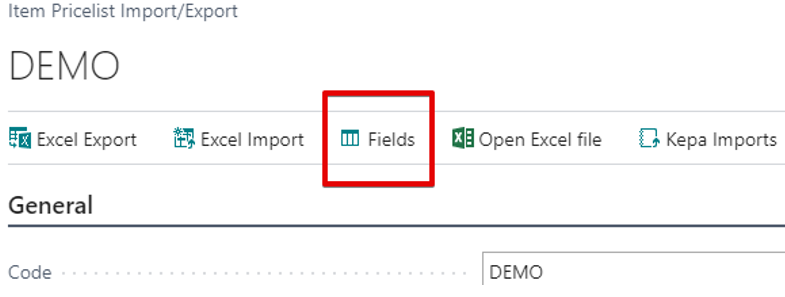
* Note: if your template does not have any fields specified, you will get the following error message when you try exporting:
You can add any data field available on the Item Card, in any sequence you see fit.
The row number corresponds to a column number in your EXCEL document.
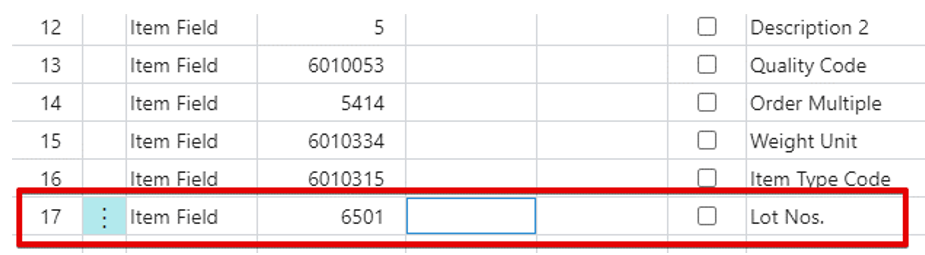
For example, I wish to add a data column named “Lot Nos.”.
On the line underneath the last entry line, click the “look up value…” button:
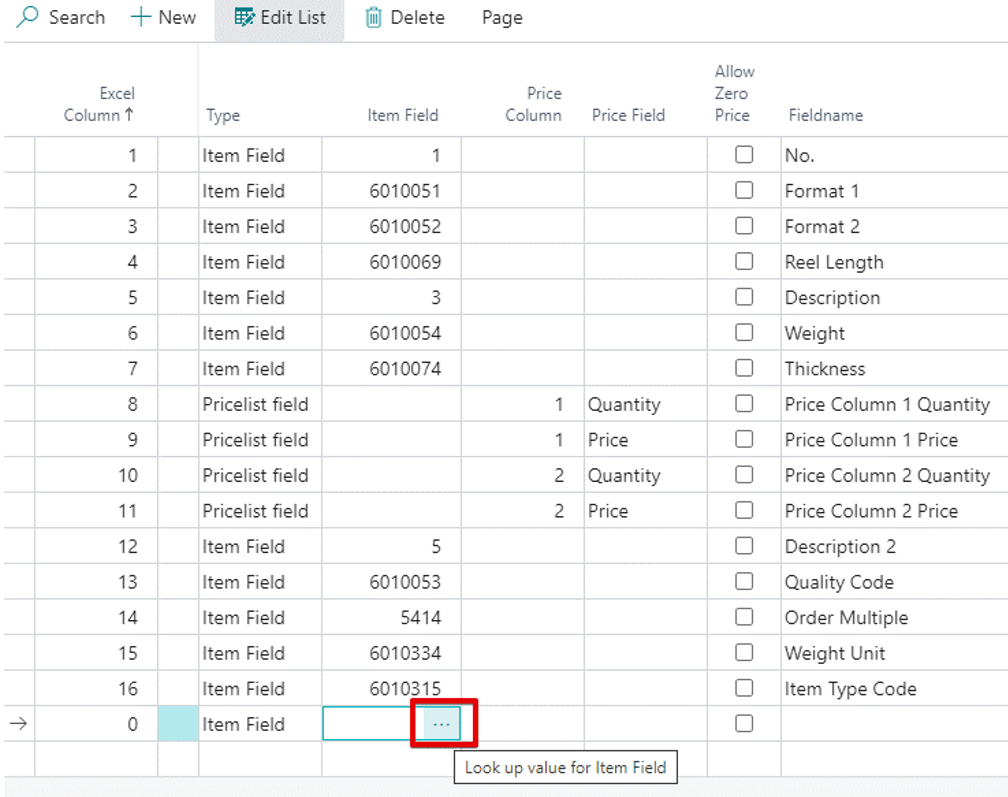
New window opens. Do a search for “Lot”, select the line and click “OK”: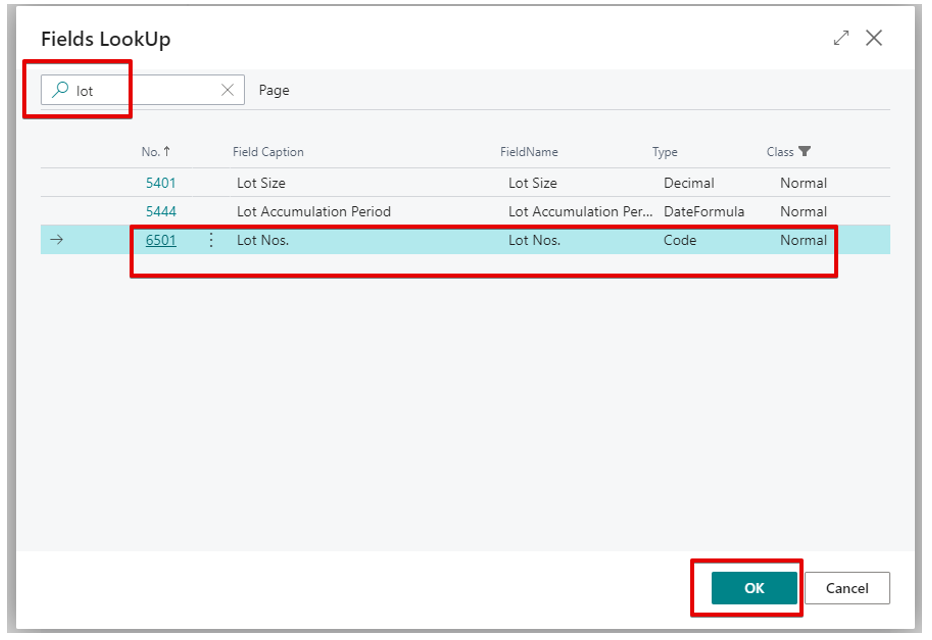
You now have the data field added:
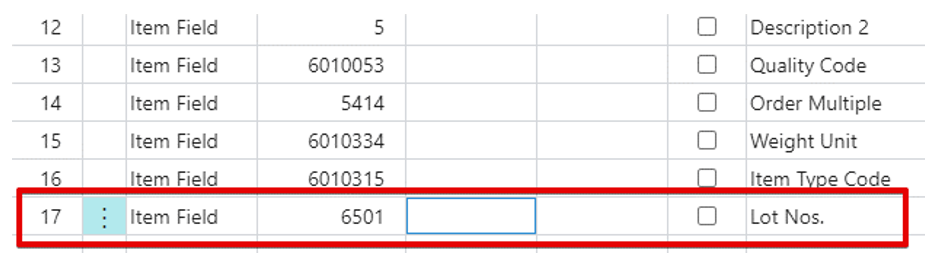
Note the difference in “Type” when selecting the “Pricelist” fields.
In this scenario, we have provided for 2 different price break points – by adding a “Quantity” and a “Price” for each price point.
You can add more if needed.
5. Export the initial data and then edit / adjust the EXCEL.
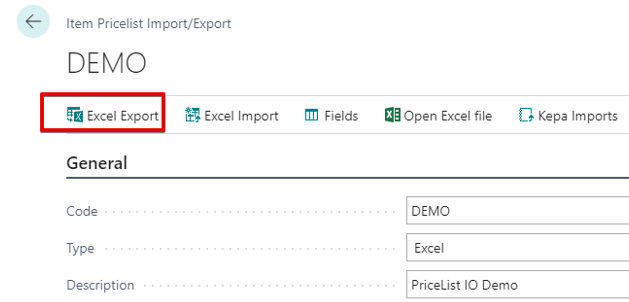
Hit the “Excel Export” button:
In the example above, my export failed at first, because PrintVis could not find any items that belong to a random Vendor “V-000003” I have selected in the “Vendor No.” field: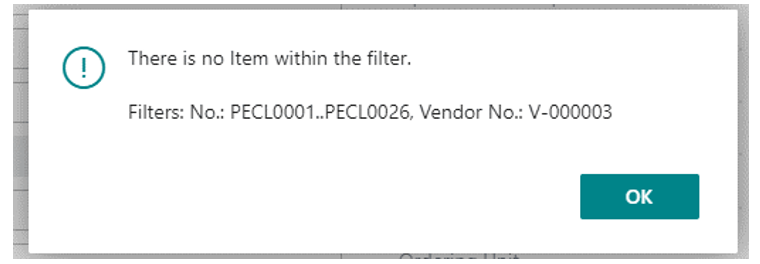
I left the “Vendor No.” field empty and tried exporting again. This time, PrintVis generated an EXCEL and made it available for download:
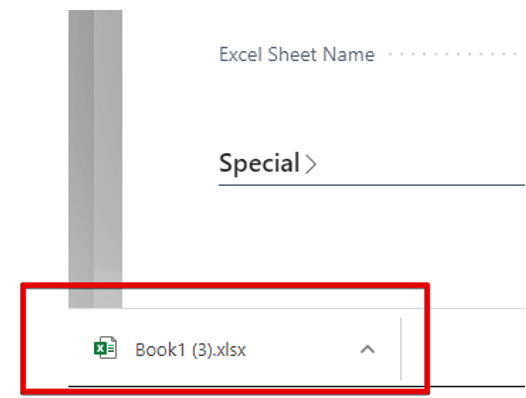
Here is the initial EXCEL data: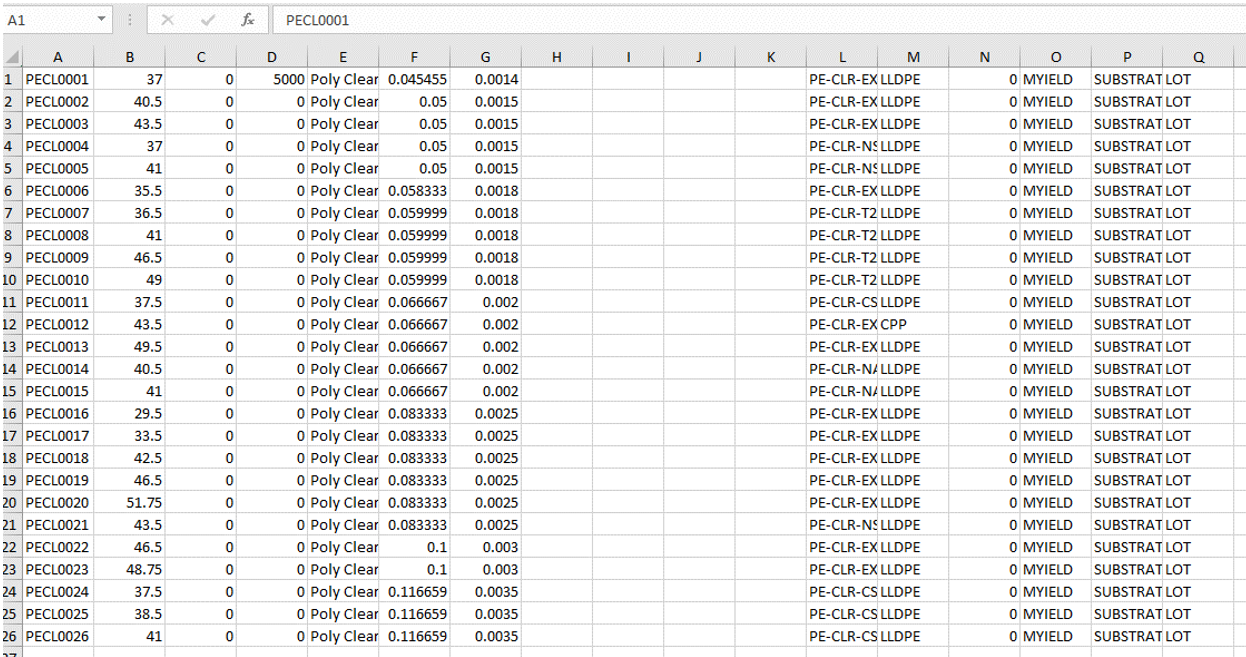
I added column headers and column numbers – so that it is easier to ID them later:
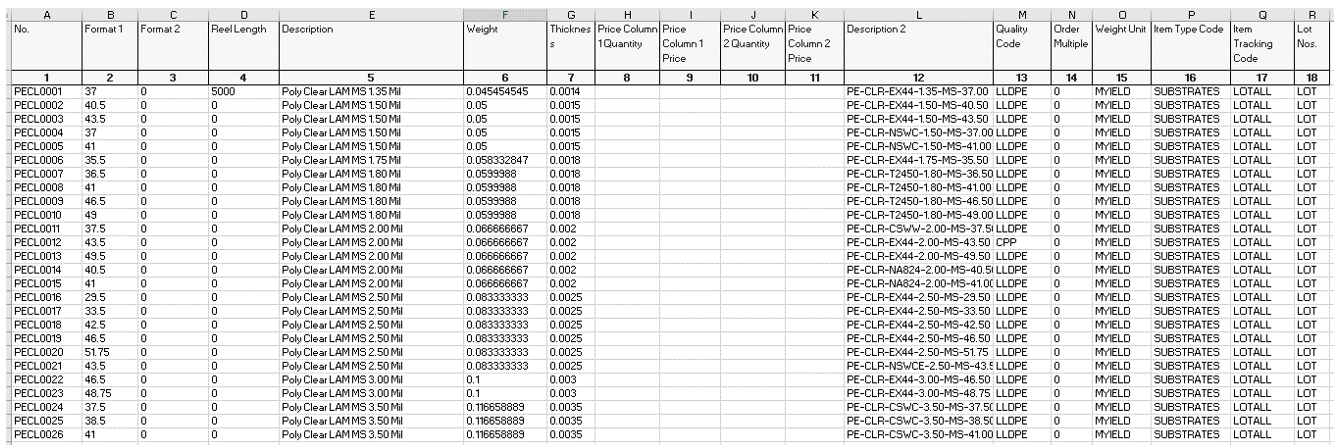
Now we can add the price list data into columns 8,9,10,11:
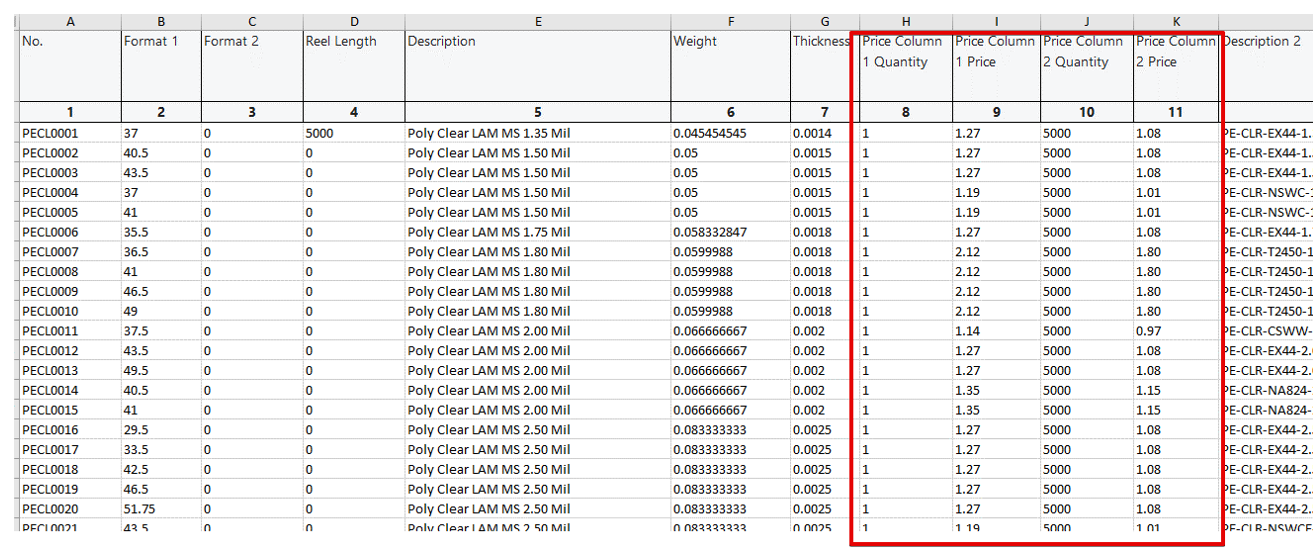
And we will add 2 new items:
We will save this EXCEL with the new name, for later reference:
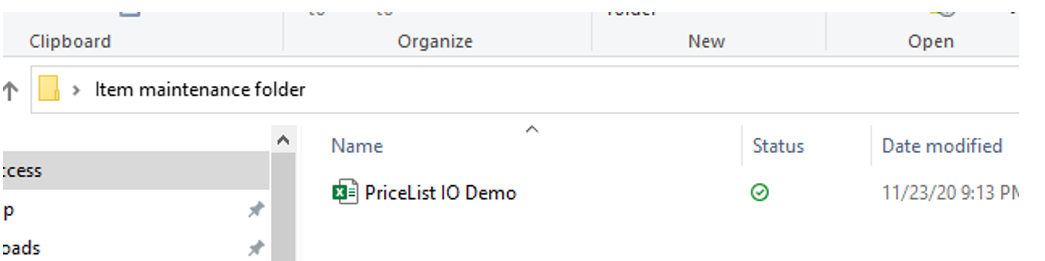
Before you import the data from this EXCEL, make sure the document is closed (otherwise you get an error message).
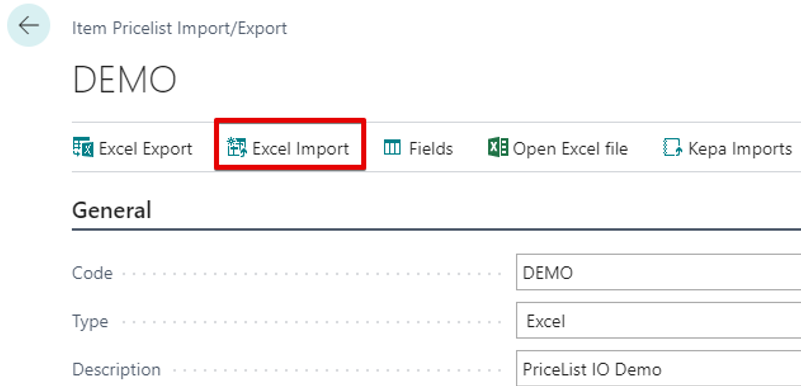
6. Import the data from your adjusted EXCEL back into PrintVis: click “Excel Import”:
Find your saved EXCEL: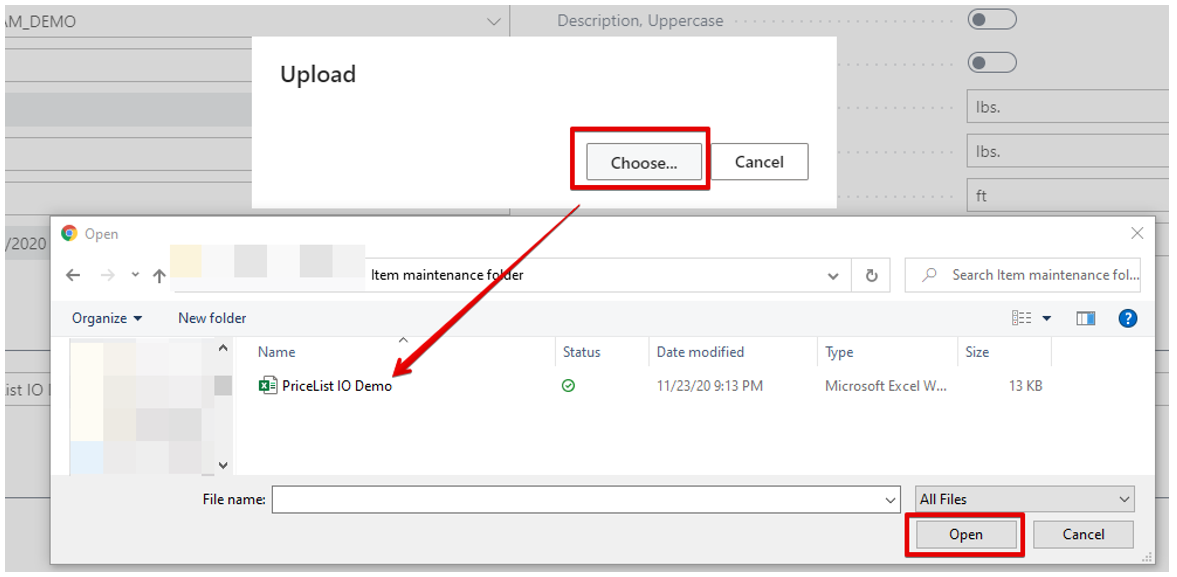
Click “Open”.
PrintVis will start the import. If it encounters an error, it will stop and warn you.
For example, this common error might come up, because we forgot 1 more important step: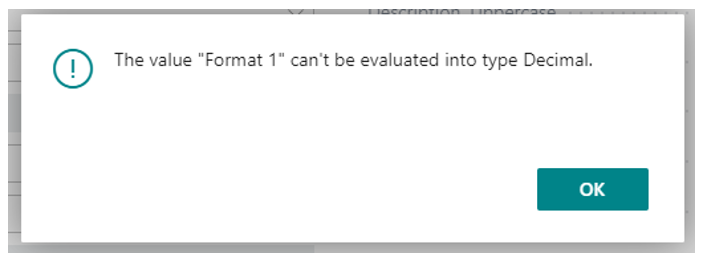
Which step is that? We forgot to specify the EXCEL data row PrintVis should be looking into when it imports the data
In our EXCEL, the data starts on the row #3:
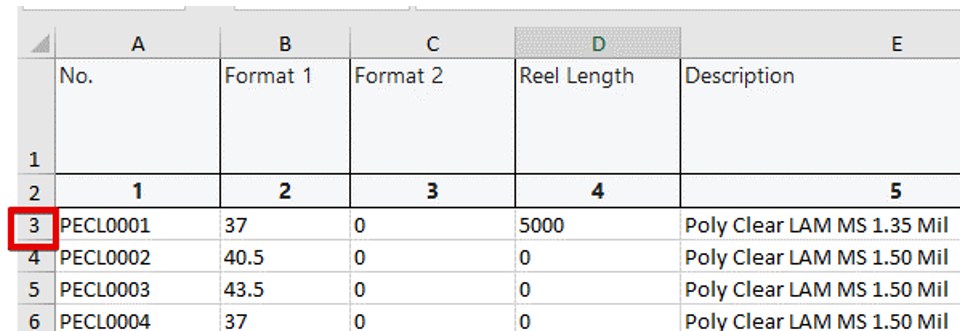
so, we enter “3” in this field on the Item Pricelist Import / Export template:

If we repeat the import now, PrintVis shows us another common error:
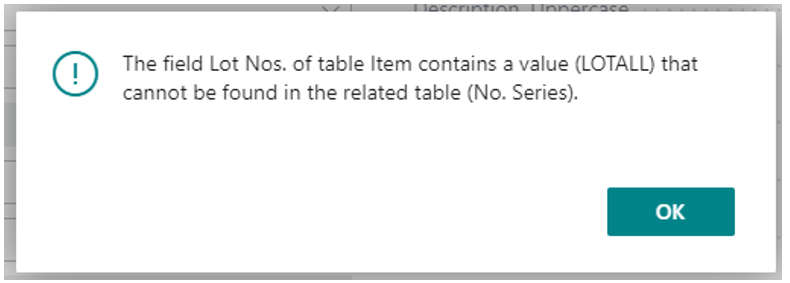
That error message appears when PrintVis finds unexpected data in the EXCEL.
In this case, we forgot that we added a new column to out EXCEL that lists “Item tracking Codes”,
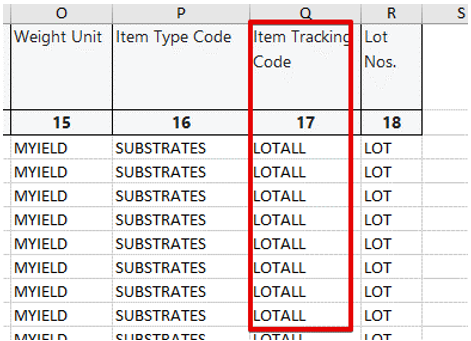
but we forgot to identify that data field on the “Fields” page in Item Pricelist Import / Export template!
PrintVis relies on us specifying the exact code available in the exact data column.
So, PrintVis cannot find the LOTALL code in the column #17, because it is not set for that kind of data:
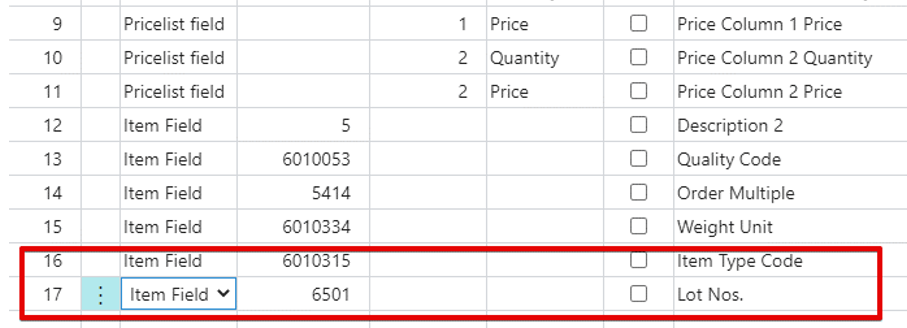
we fix the error: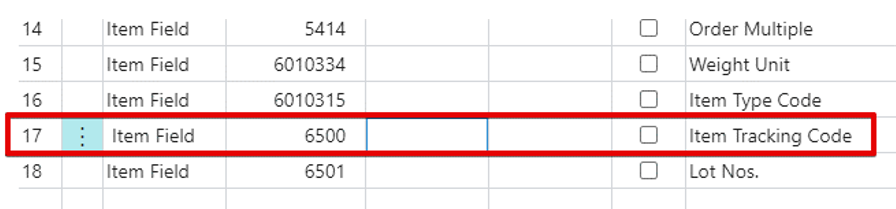
We repeat the import again. This time it worked: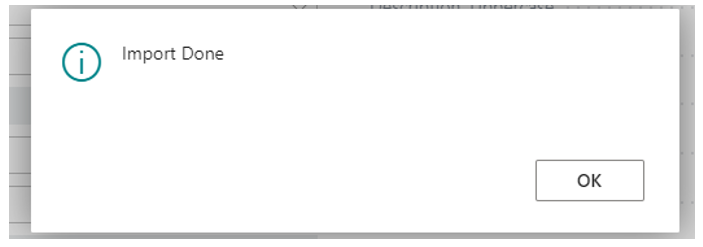
7. Check the results. Open the Items page in PrintVis, check that we now have 2 new items added:
And, these items as well as all other Items now have a corresponding Price List code attached, with “Transfer Cost” checkbox unchecked:
5. EXCEL import notes
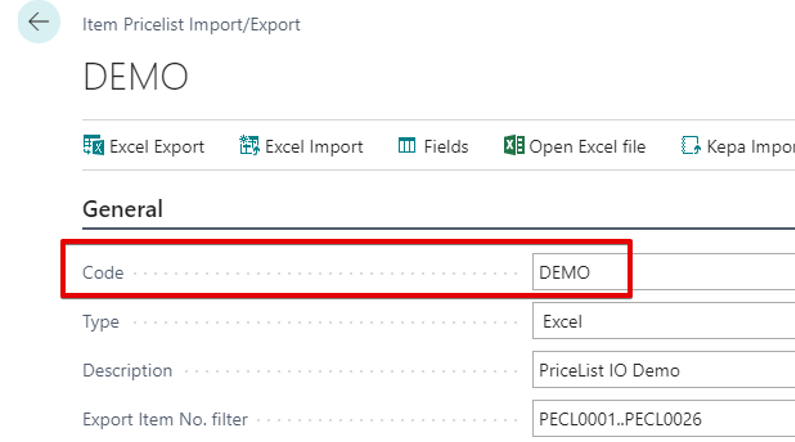
Note 1: If you later decide to change the Price list Code, this will wipe-out all data on the "Fields" page!
So, please do yourself a favor, create a new template and then copy the "fields" into it, then delete the old template.
Note 2: removing an item from the EXCEL will not remove it from PrintVis.
If you are no longer using an item, it can be
- deleted (if it was never used in any estimates or jobs)
- blocked (if we purchased it in the past, or even used it at least once in an estimate)
Note 3:
Make sure that the EXCEL you are copying from does not have any redundant / leftover data somewhere below where you cannot see.
Example: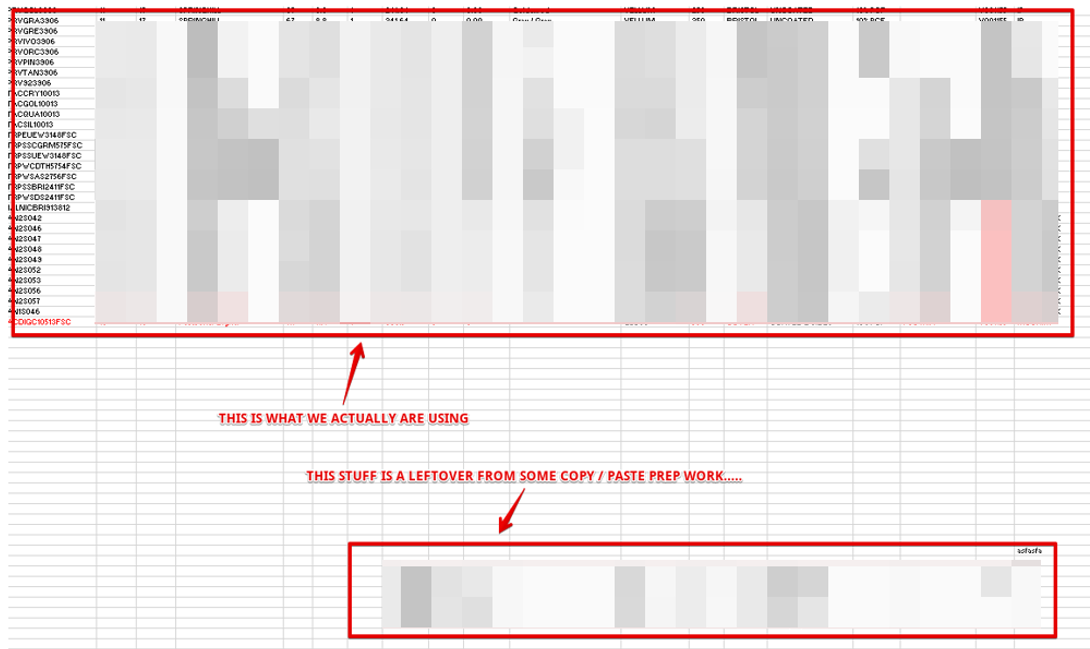
If you are getting error messages while trying to copy the data, and you’ve checked everything you could, please “zoom out” and look for this “leftover" data in your EXCEL!
6. Price List maintenance:
An initial EXCEL gets created by exporting the data using "Item Pricelist Import/Export" tool, but only once.
Then, once you’ve cleaned-up and organized the list, save the EXCEL.
When you get updated pricing and new items from Vendor add the data into your EXCEL and import it into PrintVis.
System will adjust prices on all items with the same item #'s.
If there are any new items on the EXCEL, system will import them as well.
Work with vendors to find out which items are no longer available and block them in PrintVis manually.
Create multiple "Item Pricelist Import/Export" templates - one for any major substrate category and vendor.
If we do not create separate lists for each vendor, vendor numbers will not get imported.
Point each one of these "Item Pricelist Import/Export" templates to its own worksheet on the master EXCEL.
7. PrintVis support portal info (opening these links requires a separate login and password)
https://support.printvis.com/support/solutions/articles/17000026493-price-list-setup
https://support.printvis.com/support/solutions/articles/17000015336-price-list-setup-accumulated-
https://support.printvis.com/support/solutions/articles/17000035833-price-list-zip-code

1980 Festival Plaza Drive, Suite 300, Las Vegas, NV 89135-2930
1-702-745-6967
Was this article helpful?
That’s Great!
Thank you for your feedback
Sorry! We couldn't be helpful
Thank you for your feedback
Feedback sent
We appreciate your effort and will try to fix the article